
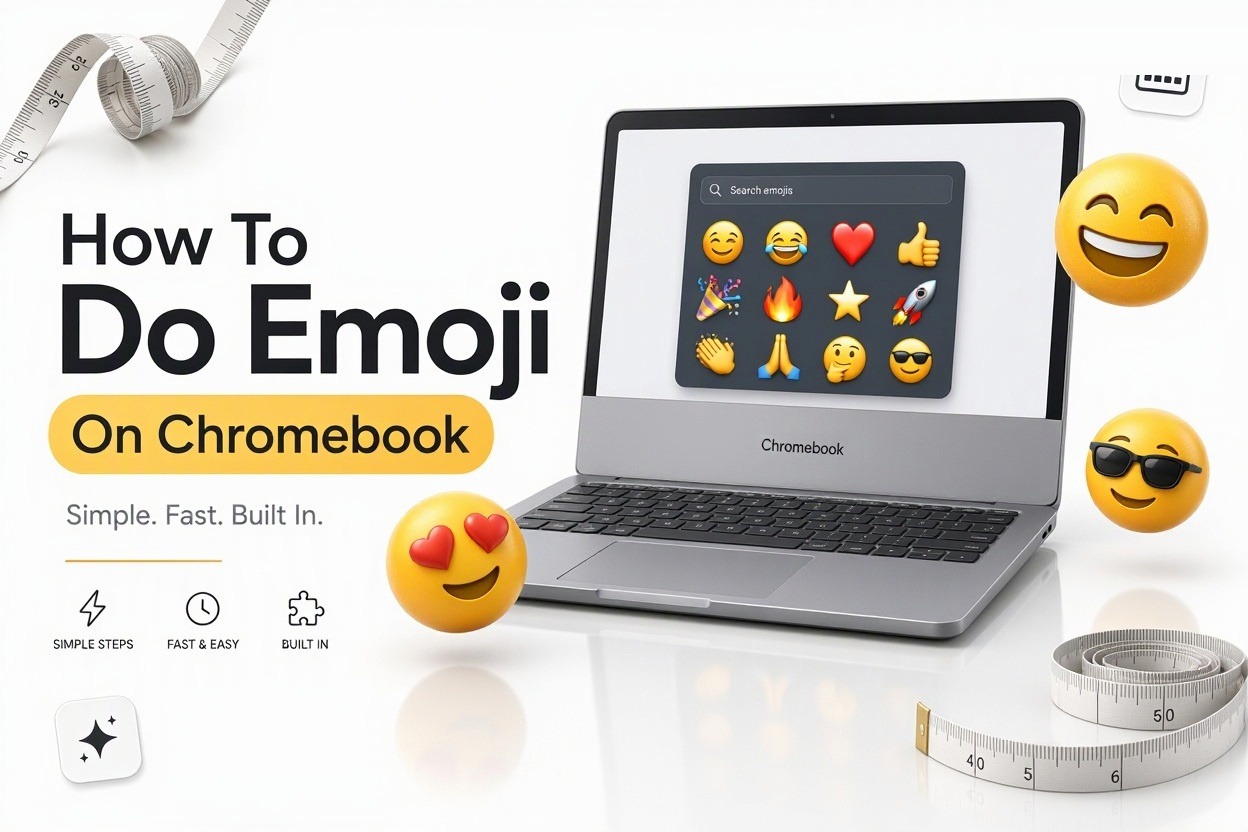
If you are wondering how to do emoji on chromebook, the answer is refreshingly simple. Press Search plus Shift plus Space to open the built in picker, then click or type to find a symbol. You can also right click any text field and choose Emoji. It works in almost every app.
That quick shortcut covers most situations, yet there is more worth knowing for school, work, and personal use. ChromeOS includes several input methods, from physical keyboard commands to touch keyboards and virtual tools. Learning each option helps you type faster and avoid frustration.
This guide walks through every reliable method step by step in plain language. You will learn where the picker works, how to change skin tones, what to do on touchscreen models, and how to handle managed school devices. Everything is explained for beginners and experienced users alike.
You do not need to install anything extra or switch to a different browser. All the tools described here are already included in ChromeOS. Once you practice the shortcuts once or twice, inserting emoji becomes as natural as typing regular letters and punctuation marks.
Quick Answer for Busy Chromebook Users
ChromeOS has a system level emoji picker that works in Docs, Gmail, YouTube, social apps, and most text boxes. Place your cursor where you want the symbol, press Search plus Shift plus Space, then browse by category or search by keyword like smile, heart, or fire.
If you prefer a mouse, right click inside the text field and select Emoji from the context menu. On touchscreen Chromebooks, tap the smiley icon on the on screen keyboard. The symbol inserts instantly at your cursor, with no copying or special codes needed for daily use.
This approach keeps your workflow smooth because you never leave the app you are working in. It is faster than opening another website to copy symbols, and it keeps formatting clean. Once you remember one shortcut, you can use emoji anywhere writing is allowed on your device.
Using the Built In Chromebook Emoji Picker
The built in picker is the most dependable option because it is maintained by Google as part of ChromeOS. It includes smileys, people, animals, food, travel, activities, objects, symbols, and flags. You can scroll visually or type a word to filter results immediately as you browse.
The picker also remembers recently used symbols, which saves time when you reuse favorites. It supports skin tone choices, gender variations where available, and keyword search. Because it is system wide, it behaves the same in Classroom, Gmail, Canva, and web based chat tools.
Opening the Picker With a Keyboard Shortcut
Place your cursor in any editable text area first, then hold the Search key, also called Launcher, and press Shift plus Space together. Release all keys and the emoji window should pop up near your cursor. If nothing happens, click once in the field to focus it and try again.
Once open, you can type a word like cat, star, or laugh to narrow choices, then press Enter to insert. Use arrow keys to move between options and Tab to switch categories. This keyboard only flow is ideal when you are writing essays, emails, or long documents without touching the mouse.
Using Right Click to Insert Emoji
If keyboard shortcuts are hard to remember, the right click menu is a friendly alternative. Click inside a text box with two fingers on the trackpad or right click with a mouse, then choose Emoji from the menu. The same picker appears, ready for browsing and searching with simple clicks.
This method is especially helpful for new users, younger students, and anyone using an external mouse. It requires no memorization and works in nearly identical fashion across apps. Just remember the field must be editable, so it will not appear on plain web pages without an input box.
Quick Steps to Insert Any Emoji
Use this simple routine whenever you need a symbol in class notes, email, or social posts. It works on most current Chromebooks without extra setup or extensions and takes only a few seconds once you practice the rhythm twice.
Step 1: Click inside the document, comment box, or chat field where the emoji should appear.
Step 2: Press Search plus Shift plus Space together, or right click and choose Emoji.
Step 3: Type a keyword such as happy, thumbs up, or pizza to filter the grid.
Step 4: Click the symbol you want, or highlight it and press Enter to insert.
Step 5: Press Escape to close the picker and continue typing normally.
Step 6: Repeat as needed, using the Recent section for symbols you use often.
Typing Emoji With Keyboard Shortcuts on ChromeOS
Keyboard shortcuts are the fastest way to stay in flow while writing. The main combination uses the Search key because Chromebooks do not have a standard Windows key. On some older models the Search key looks like a magnifying glass, but its position is the same above the left Shift area.
Many users confuse this shortcut with screen capture or launcher commands. The key difference is adding Shift plus Space together while holding Search. Practice slowly at first, then speed up. After a few tries, muscle memory takes over and you will open the picker without looking down.
Essential Shortcuts for Everyday Use
Beyond the main picker, a few related shortcuts make writing smoother. Press Search plus V to open clipboard history, which can store recently copied emoji for reuse. Press Ctrl plus Shift plus Space to open a special characters tool for arrows, math symbols, and accented letters in Docs.
If you use a Chromebook in tablet mode with a detachable keyboard, you can still attach the keyboard briefly to learn shortcuts, then switch to touch methods later. Keeping a sticky note with the main combination near your desk helps until it becomes automatic and second nature for you.
Using the On Screen Keyboard for Touchscreen Chromebooks
Convertible and tablet style Chromebooks include a touch keyboard with a dedicated emoji button. Tap any text field to bring up the keyboard, then tap the smiley face at the bottom row. Swipe through categories for smileys, animals, food, travel, and symbols, then tap to insert at the cursor.
You can also long press certain keys for related symbols or switch to handwriting mode if enabled. Make sure the on screen keyboard is turned on under Settings, Accessibility, Keyboard. This method is comfortable for reading on the couch, annotating PDFs, or replying quickly in tablet orientation without hardware keys.
Helpful Tips for Tablet Mode Typing
Tablet mode changes how input feels, so small adjustments help a lot. Keep these practical tips in mind when you rely on touch rather than a physical keyboard for emoji and daily writing tasks in class or at home.
Tip 1: Enlarge text scaling under Display settings so tap targets are easier to hit accurately.
Tip 2: Use split keyboard layout if your model supports it for comfortable thumb typing in landscape.
Tip 3: Pin frequently used emoji by using them often, since the Recent tab updates automatically.
Tip 4: Tap the search icon inside the emoji panel to find symbols by word instead of scrolling.
Tip 5: Rotate to landscape when browsing categories, as more icons fit on each visible row.
Adding Emoji in Google Docs and Classroom Apps
Google Docs, Slides, Classroom, and Gmail all support the system picker without extra add ons. Just click in the document and use Search plus Shift plus Space. The emoji behaves like regular text, so you can resize it by changing font size, change color in some cases, and align it with surrounding words.
Teachers often use emoji for feedback, checklists, and visual organization. Students use them in journals, presentations, and discussion replies. Because Docs autosaves, your symbols sync across devices. What you insert on a Chromebook will appear correctly on a phone, tablet, or Windows computer in most modern fonts.
Working Inside Google Docs Editors
Inside Docs you also have Insert, Special characters, where you can search for symbols by name. While that tool is better for math and arrows, the system emoji picker is faster for colorful faces and objects. Avoid pasting emoji from random websites, since that can bring unwanted formatting or extra spacing into your document.
If an emoji looks black and white in Docs, try a different font such as Noto Color Emoji or Roboto. Some older templates force a print friendly font that lacks color glyphs. Changing the selected symbol to a color capable font usually restores full appearance without altering the rest of your paragraph style.
Using Emoji on Websites and Social Media
On YouTube comments, Instagram, TikTok, Discord, and web based messaging apps, the same ChromeOS picker works wherever you can type. Click the comment or message box first, open the picker, and insert. The website treats the symbol as text, so it posts just like words when you hit send or publish.
Some sites also have their own emoji button inside the compose box. Either option is fine, though the system picker gives more consistent search and skin tone control. If a symbol posts as a blank box, the site or browser version may be outdated. Updating ChromeOS usually fixes missing glyphs and display quirks quickly.
Plain Text Comparison of Popular Methods
Choosing the right method depends on your device style and comfort with shortcuts. This simple comparison helps you decide which approach to practice first based on speed, ease of learning, and where you do most of your writing each day.
Method: Keyboard shortcut Search Shift Space. Best for: Laptop users writing essays and email. Speed: Fastest after practice. Notes: Works system wide in editable fields.
Method: Right click menu Emoji. Best for: Beginners and mouse users. Speed: Medium. Notes: Easy to discover, no memorization required.
Method: Touch keyboard smiley key. Best for: Convertible tablets and touchscreens. Speed: Medium fast. Notes: Great in tablet mode, requires touch keyboard enabled.
Method: Clipboard history Search V. Best for: Reusing favorite symbols. Speed: Fast for repeats. Notes: Stores copies you use often during a session.
Changing Skin Tone and Finding the Right Symbol
Many human emoji allow skin tone and gender adjustments. Open the picker, select a person icon, then look for a small palette or variant row. Choose the tone you prefer once, and ChromeOS often remembers it for similar symbols. This makes communication more personal and inclusive without extra steps.
If you cannot find a specific symbol, try different keywords. Searching happy may show different results than smile or grin. Try singular and plural forms, such as cat and cats, or broader terms like food, celebration, and weather. Browsing the category tabs also reveals options that keyword search sometimes misses on the first attempt.
Fixing Common Emoji Problems on Chromebooks
Sometimes the picker does not open, symbols appear as boxes, or right click shows no Emoji option. Start with basics. Click directly in an editable field, not on a toolbar. Restart the app, then restart the Chromebook. Check for ChromeOS updates under Settings, About ChromeOS, since emoji fonts improve with system releases.
School managed devices may disable certain features. If the shortcut fails only at school, ask your teacher or IT admin whether input options are restricted. Extensions can also interfere. Try an Incognito window with extensions off. If it works there, disable extensions one by one to find the conflict.
Troubleshooting Checklist for Missing Emoji
Work through this checklist in order when symbols fail to appear or insert correctly. Most issues resolve in the first three steps without needing advanced support or a full device reset that would waste valuable class or work time.
Check 1: Confirm cursor is blinking inside an editable text field before opening picker.
Check 2: Try both shortcut and right click method to isolate a keyboard issue.
Check 3: Update ChromeOS and restart the device to refresh fonts and input services.
Check 4: Test in Guest mode or a different profile to rule out settings conflicts.
Check 5: Disable recent extensions, especially keyboard, ad blocking, or script tools.
Check 6: Reset keyboard settings to default if keys were remapped previously.
Limitations of Emoji Support on Older Models
Older Chromebooks may show fewer emoji or render new releases as outline boxes. This happens because color font updates are tied to ChromeOS versions, and some devices no longer receive major updates. The picker will still open, but the newest animals, foods, and gestures may be missing from the grid.
Performance can also lag on low memory models when scrolling large categories. Typing a keyword narrows results and reduces strain. If color emoji never appear anywhere, your device may lack the Noto Color Emoji font. In that case, updating is the best fix, followed by using widely supported classics like hearts and basic smileys.
Helpful Settings and Accessibility Options
You can make emoji input easier through ChromeOS settings. Under Settings, Device, Keyboard, review key behavior if Search does not act as expected. Under Accessibility, enable on screen keyboard, dictation, and sticky keys if holding multiple keys at once is difficult for your hands or workflow needs.
Dictation is a useful bonus. You can say emoji names aloud in some apps, though results vary. For consistent results, stick with the picker for precise symbols and use dictation for body text. Exploring Language and inputs also lets you add international keyboards, which include additional symbols useful for math, language study, and creative projects.
Practical for Students and Workers
Students can mark assignment status with check marks, stars, and colored circles in planners. A rocket can highlight goals, a book can tag reading notes, and a light bulb can flag ideas for essays. Consistent symbols make notebooks scannable and help teachers spot key sections quickly during review without reading every line.
At work, use emoji sparingly for clarity in chat updates and project boards. A green check for done, a warning sign for blocked, and a calendar for due dates improve scanning. Avoid overloading formal documents. One or two well placed symbols guide attention, while too many distract from the message and reduce professional polish.
Conclusion
Emoji input on ChromeOS is simple once you know where to look and which shortcut fits your device. With the system picker, right click menu, and touch keyboard, most people can insert any symbol in seconds. A little practice with search terms and skin tones makes everyday writing faster, clearer, and more expressive for school and work alike.
If you take one habit from this guide, remember that learning how to do emoji on chromebook saves time across Docs, email, chat, and social apps. Keep your system updated, practice the shortcut until it feels natural, and use the troubleshooting steps whenever something looks off on an older or managed device.
Frequently Asked Questions
What to Do When the Chromebook Emoji Shortcut Stops Working?
First click inside an editable field, then retry Search plus Shift plus Space slowly. Restart the browser and the device, check for ChromeOS updates, and test in Guest mode to rule out extensions or profile settings.
How to Add Emoji Without a Physical Keyboard on Chromebook?
Tap a text field to show the on screen keyboard, then tap the smiley icon. Browse categories or use search, tap a symbol to insert, and use the Recent tab for quick access to favorites during longer sessions.
Why Some Emoji Look Different on Chromebook and Phone?
Each platform uses its own color font and art style, so shapes and shading vary. Meanings stay the same, but details differ. Updating ChromeOS ensures you see newer designs and reduces blank boxes across devices.
How to Use Kaomoji and Symbols Alongside Standard Emoji?
Open the picker and look for symbols or text faces like shrugs and smileys made from characters. You can also use Ctrl plus Shift plus Space in Docs for arrows and special marks that pair well with colorful icons.
Whether School Managed Chromebooks Allow Emoji Input?
Most school devices allow emoji, though some admins restrict input methods or extensions. If the picker is blocked, ask IT for help, use Docs special characters where permitted, and avoid third party extensions without approval.